
How to Sign E-Form Agreements
How to Sign your E-form Agreements in AIM
- Access the AIM portal
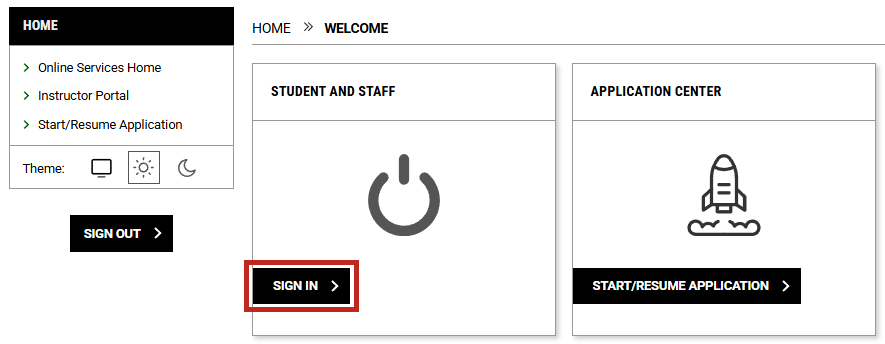
AIM Portal - Under the "Student and Staff" section, click on the "Sign In" button.
- Once signed in, an alert titled, "Available Forms" will inform you that you need to sign your e-form agreements.
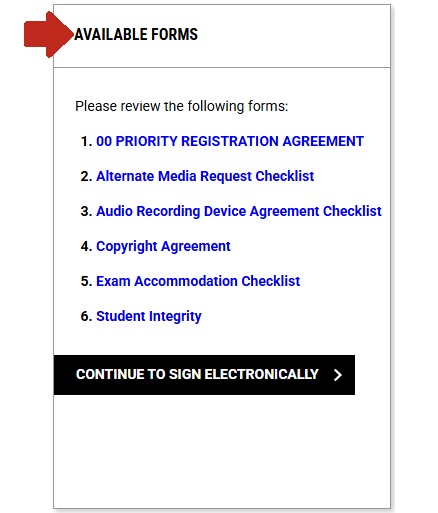
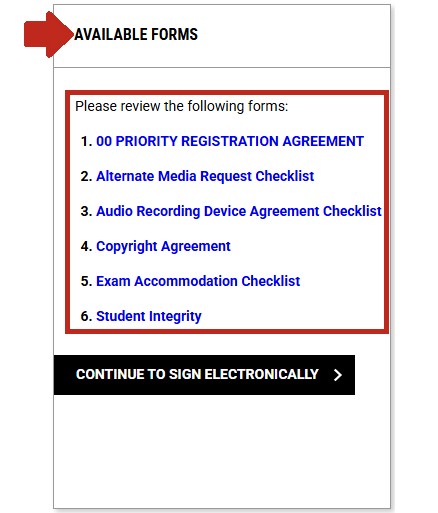
- Select the agreements and review each one.
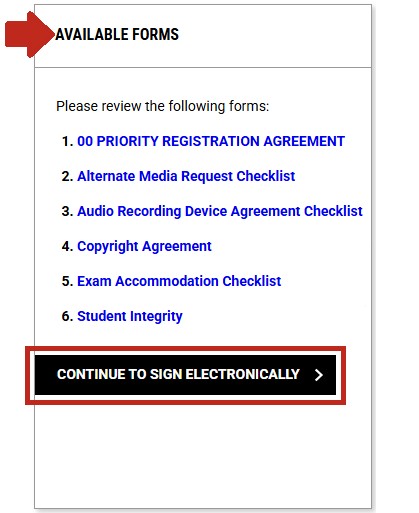
- Once you have reviewed each agreement, click on the "Continue to Sign Electronically" button.
- Select the agreements and review each one.
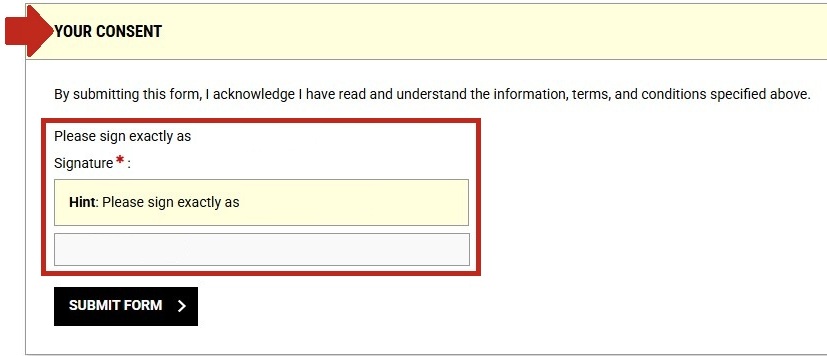
- A section titled "Your Consent" will pop up. This is where you will be signing the agreements.
- In the text box, type your name as you see it in the sentence, "Please sign exactly as..."
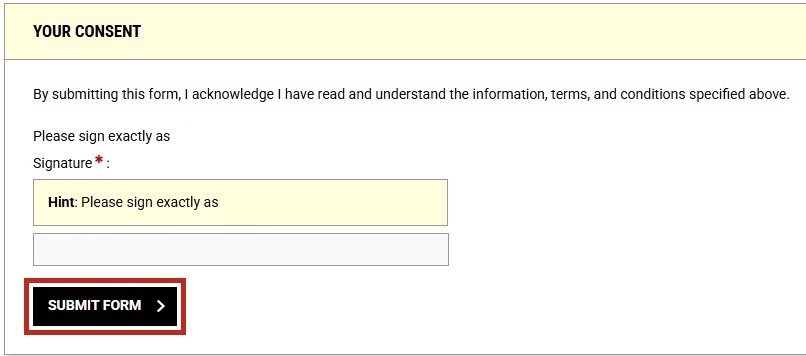
- Once you have typed your name in the text box, click the "Submit Form" button.
- In the text box, type your name as you see it in the sentence, "Please sign exactly as..."
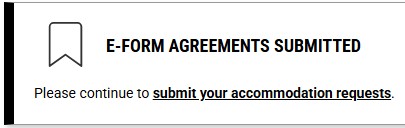
- You're done! If you have any questions contact DSPS.
Contact Us
