
How to Access Notes in AIM
How to Access Notes Uploaded in AIM
- Access the AIM portal
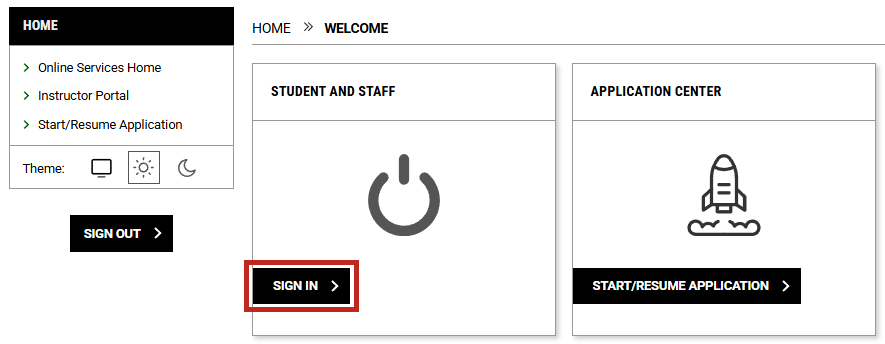
AIM Portal - Under the "Student and Staff" section, select the "Sign In" button
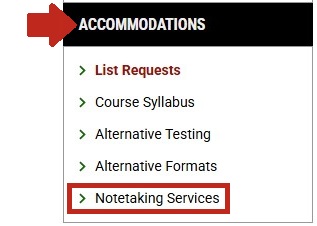
- Under the "Accommodations" section in the left-side menu, select "Notetaking Services"
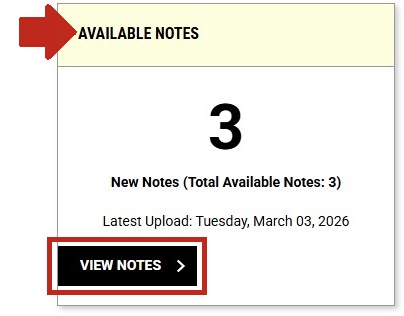
- Under the section titled "Available Notes," click on the "View Notes" button.
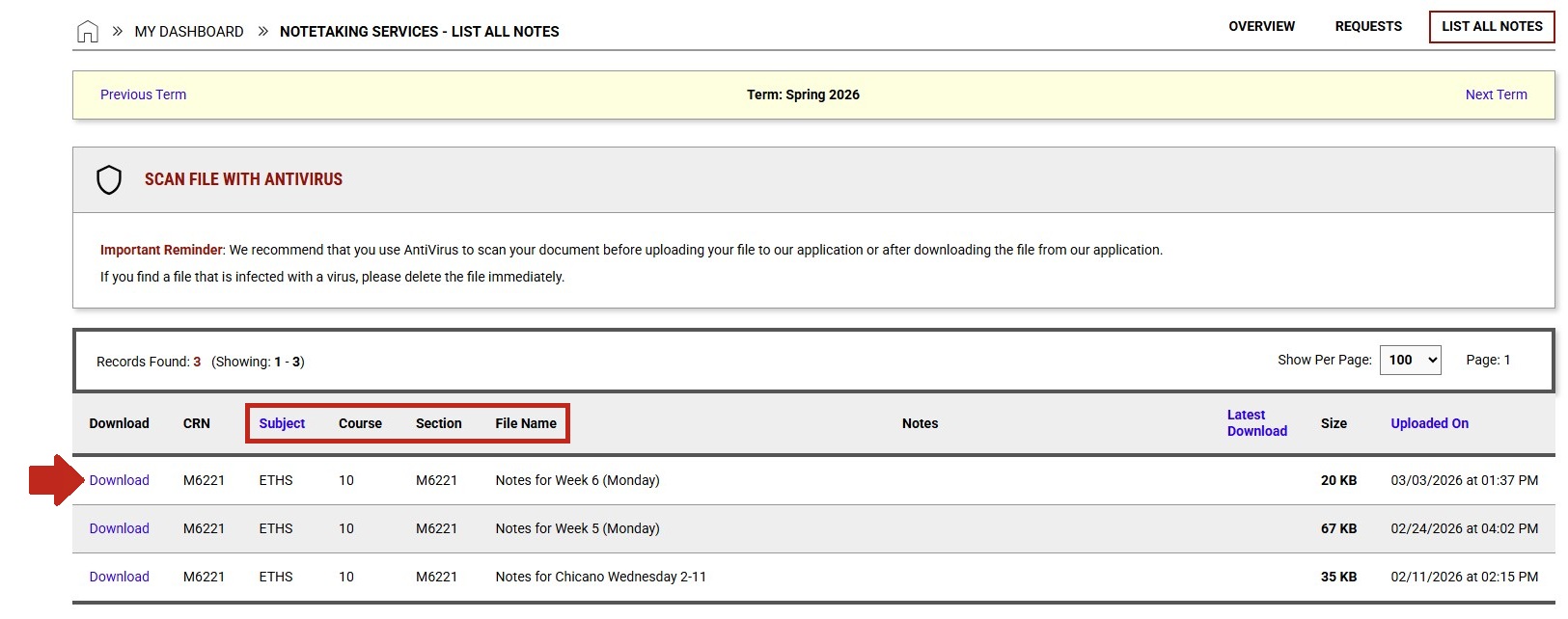
- A list will come up with all the notes that have been uploaded for this term.
- To locate the notes you wish to access, look at the listed "Subject", "Course", "Section", and "File Name"
- Click "Download" located next to the file that you want to view. This will download the file to your device, where you can open it and view the notes.
- You're done! If you have any questions contact DSPS.
Contact Us
