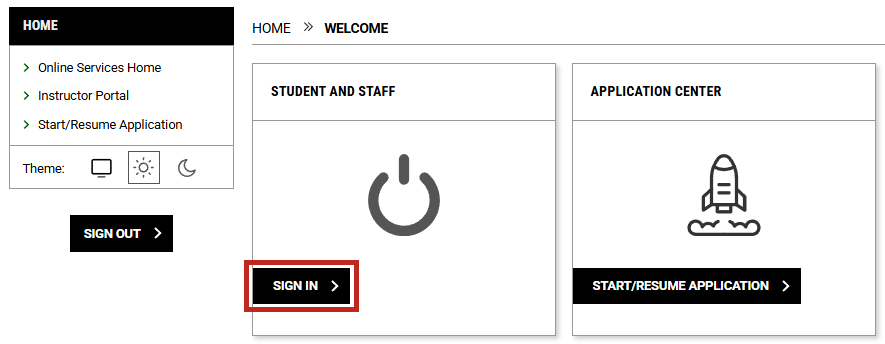
Under the "Student and Staff" section, select the "Sign In" button.
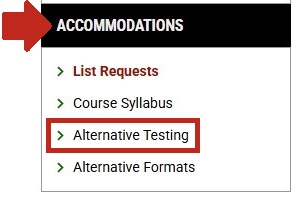
Under the "Accommodations" section in the left-side menu, select "Alternative Testing"
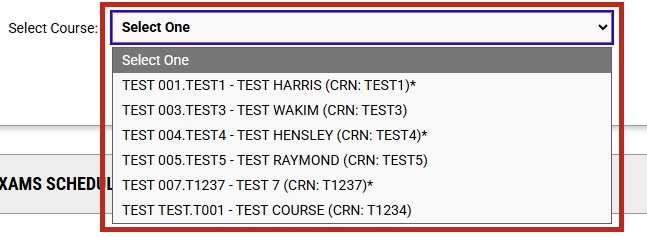
Select the appropriate course by clicking on the drop-down menu next to, "Select Course"
Once you have selected the class, click the "Schedule an Exam" button.
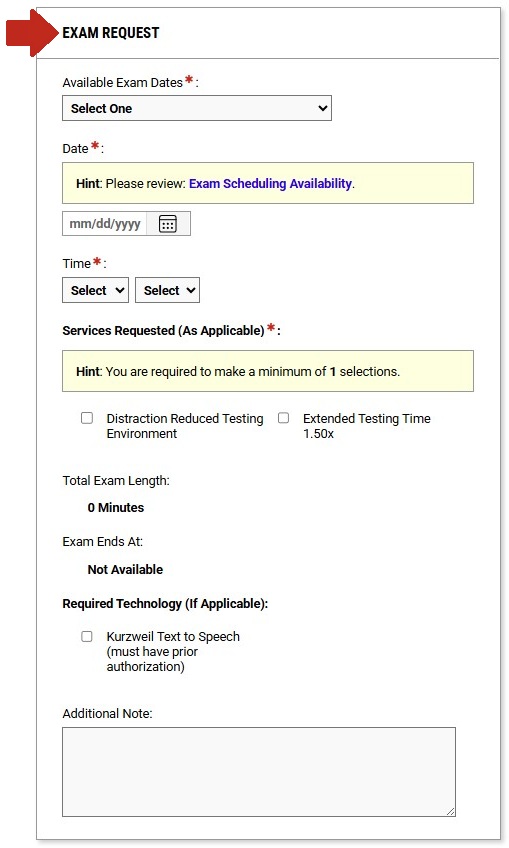
An "Exam Request" menu will pop up.
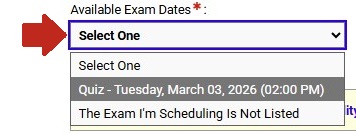
Below "Available Exam Dates:" click on the drop-down menu and select the exam you wish to take.
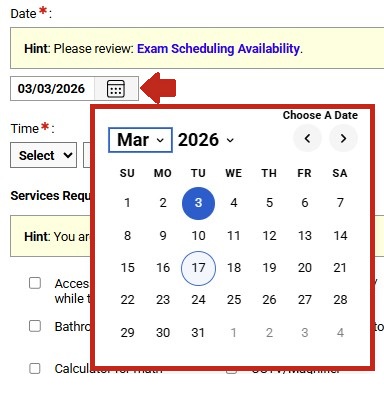
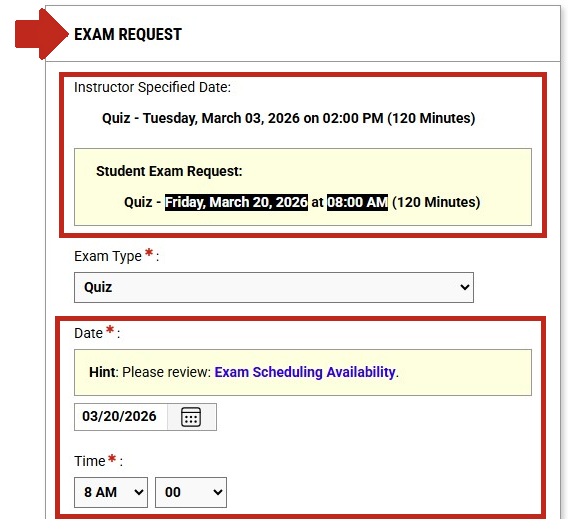
Below "Date" click on the calendar icon and select the date that you will be taking the exam in the DSPS office.
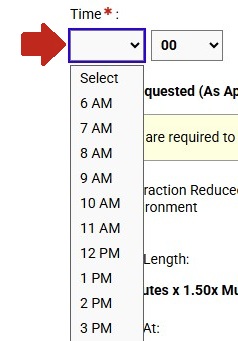
Under "Time" select the time of day you will be taking the exam. The drop-down menu on the left is where you will select the hour, and the drop-down menu on the right is where you will select the minute.
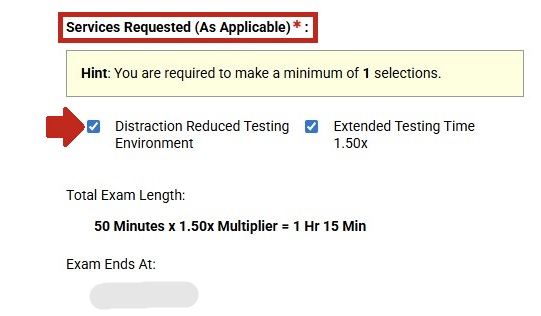
Under "Services Requested (As Applicable)" select each accommodation that you would like to use for the exam.
Click on the "Add Exam Request" button to submit your reservation.
You're done! If you have any questions contact DSPS.
Under the "Student and Staff" section, select the "Sign In" button.
Under the "Accommodations" section in the left-side menu, select "Alternative Testing"
Under the "Upcoming Exams Scheduled" section, locate the exam you wish to cancel by looking at the listed "Exam Date" and "Time Range"
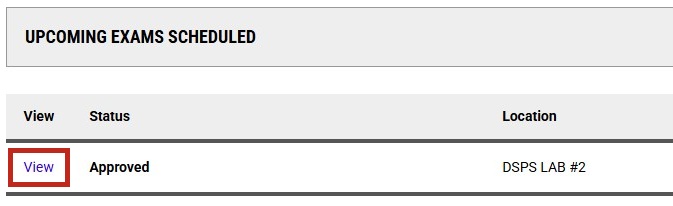
Once you have found the exam that you wish to cancel, click on "View"
Under "Exam Request" you will find the information about the exam that you have selected. Double check this information to be sure that you have selected the exam that you want to cancel.
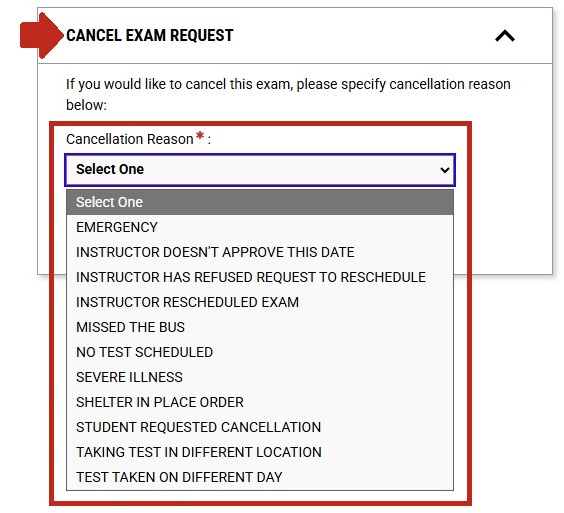
Under the section titled, "Cancel Exam Request" there will be a drop-down menu where you will select your reason for cancelling the exam reservation.
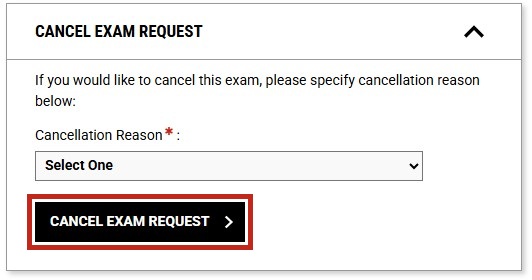
Once you have selected the reason, click on the "Cancel Exam Request" button below it.
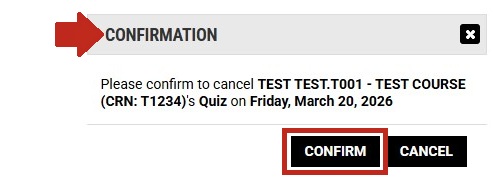
A message titled, "Confirmation" will pop up to confirm that you would like to cancel the exam. If the information that it lists about the exam is correct, click the "Confirm" button.
You're done! If you have any questions contact DSPS.