
DSPS Application Instructions
How to Apply to DSPS
- Access the AIM portal
AIM Portal - Under "Application Center" section, click the "Start/Resume Application" button.
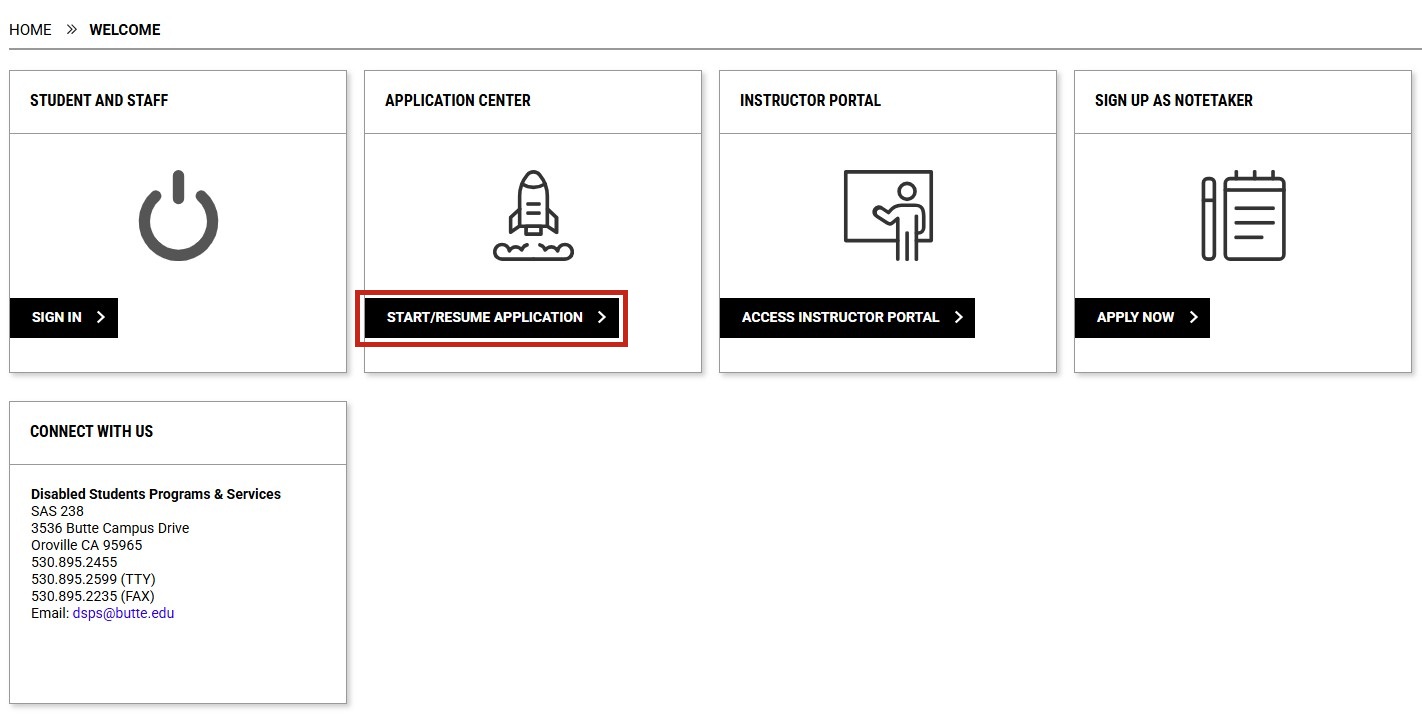
- Login using your Butte College student email address and password.
- After you log in, you will be taken to the "Overview" page.
- Under the section titled "DSPS Online Application w/ Voter Registration," click on the "Start New Application" button.
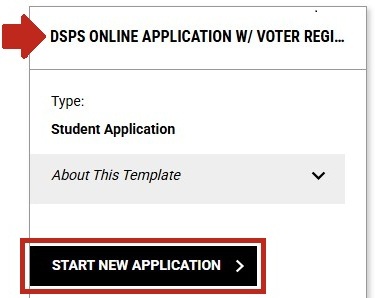
- This will take you to the "Student Application" page.
- Under the section titled "Application Information" you will choose the term that you started at Butte College from the drop-down menu below the "Start Term" subtitle and choose the term you expect to graduate from Butte College from the drop-down menu below the "Expected Graduation Term" subtitle.
- Your graduation term does not affect your eligibility. If you don't know when you will graduate, then choose the term two years after the term you selected as your Start Term.
Ex. Start Term: Fall 2026 Expected Graduation Term: Spring 2028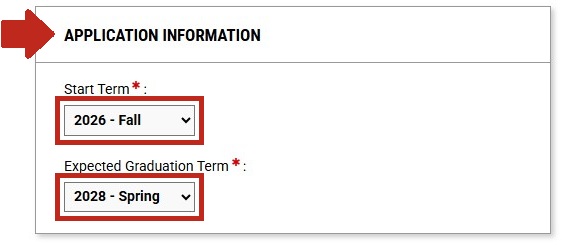
- Your graduation term does not affect your eligibility. If you don't know when you will graduate, then choose the term two years after the term you selected as your Start Term.
- Under the section titled "Personal Information" you will enter your First and Last Name, Student ID Number, and Birth Date.
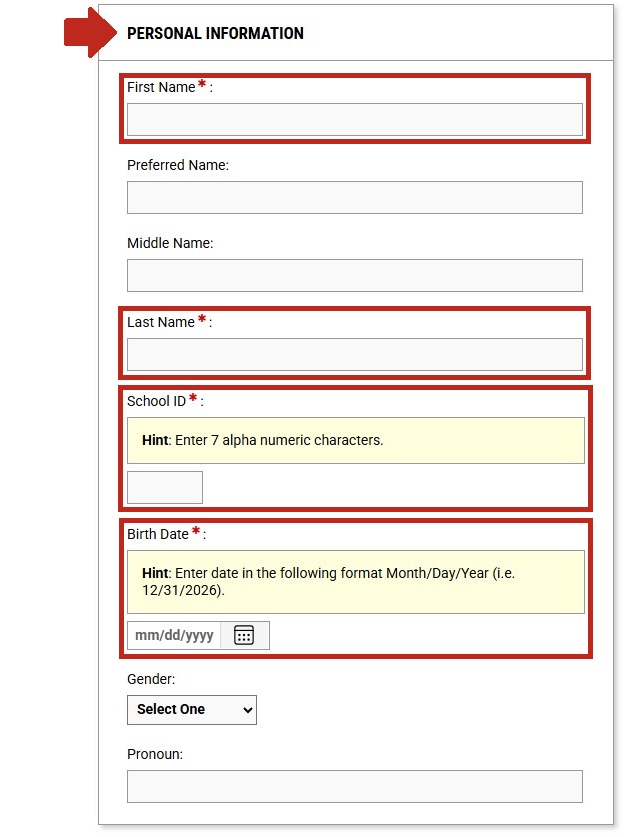
- You can also provide your Gender and Pronouns at the bottom of this section. This is not required.
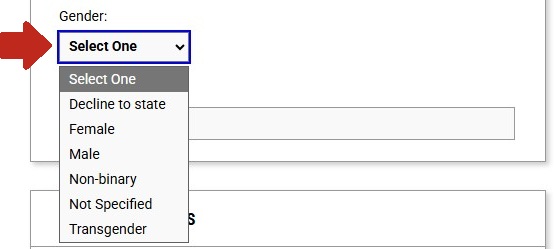
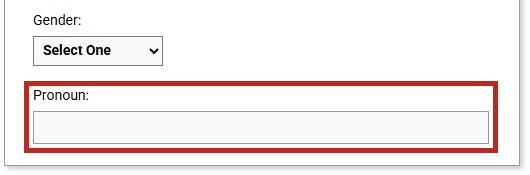
- You can also provide your Gender and Pronouns at the bottom of this section. This is not required.
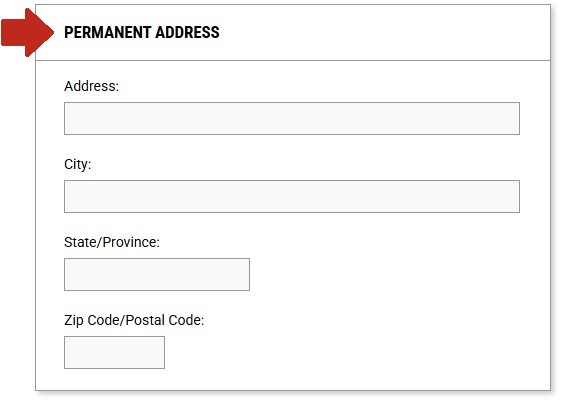
- Under the section titled "Permanent Address" you can enter your current address.
- Under the section titled "Contact Information" you will provide your School Email Address and Primary Phone Number.
- You can also provide a Secondary Phone Number. This is not required.
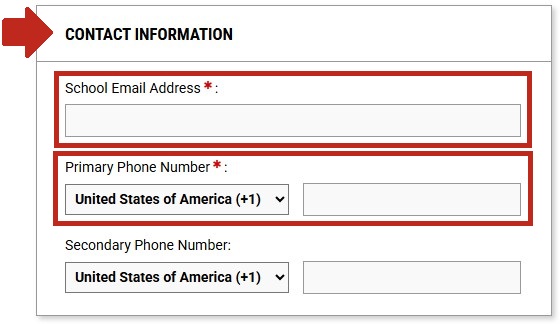
- You can also provide a Secondary Phone Number. This is not required.
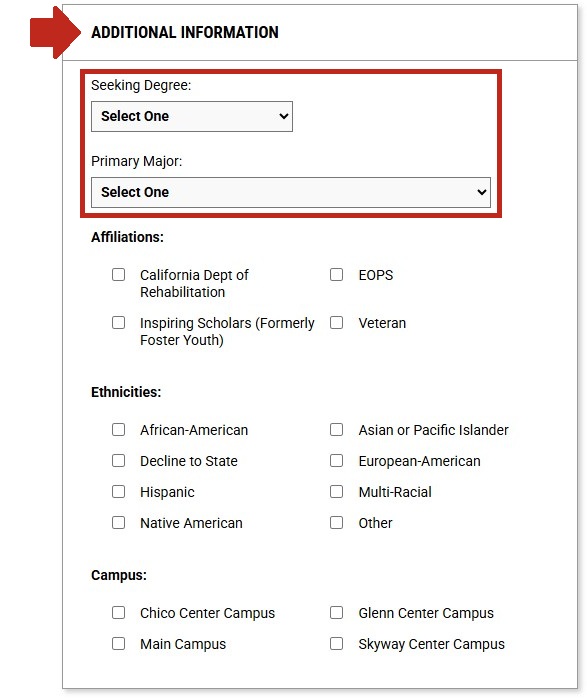
- Under the section titled "Additional Information" you can provide information about the degree that you are seeking, if you are affiliated with other resources, your ethnicity, and the Butte College campus/campuses that you attend. These fields are optional.
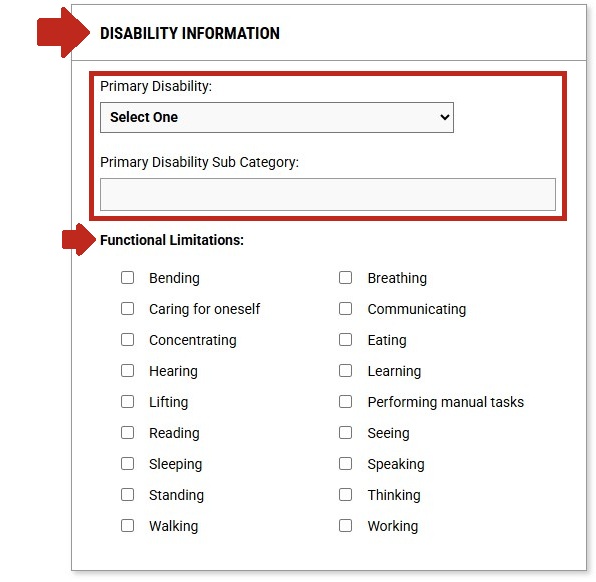
- Under the section titled "Disability Information" is where you will provide information about your disability.
- First, choose an option from the drop-down menu under "Primary Disability" that aligns most with your primary disability.
- Second, under "Primary Disability Sub Category:" you can enter a specific diagnosis that you may have that is within your primary disability category. This field is not required.
Ex. Primary Disability: Mental Health Primary Disability Sub Category: Depression - Third, you will check the boxes next to the options from the list titled "Functional Limitations" that you may struggle with.
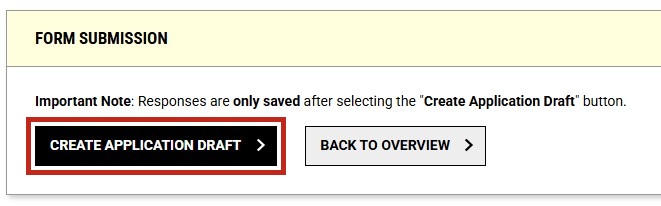
- Once you have completed the questionnaire section of the application, you can save your application by clicking on the "Create Application Draft" button.
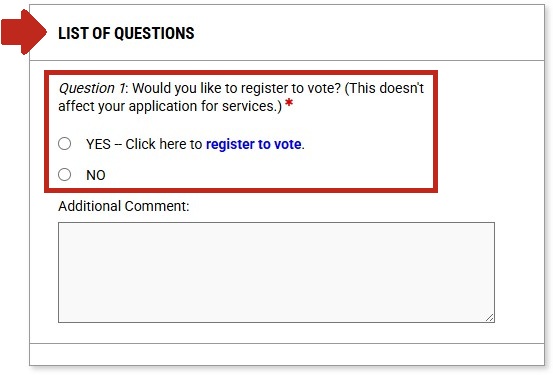
- A new section will come up titled "List of Questions" it asks if you would like to register to vote. You can select either "YES - Click here to register to vote" or "NO"
- Your answer will not affect your eligibility for the DSPS Program.
- Your answer will not affect your eligibility for the DSPS Program.
Disability Verification
- After you have finished filling out the application, you will need to submit Disability Verification.
- Disability verification must contain three things:
- Students full name
- Disability type or diagnosis
- Providers name and information
- Some examples of Disability Verification are:
- Documentation of a history of special education services (including IEP)
- Veterans eBenefits printout showing your name and disabilities from www.ebenefits.va.gov
- Disability documentation you provided to social security used to determine your eligibility
- Disability documentation from your medical provider that includes your diagnosis
- Disability documentation from your mental health services provider that includes your diagnosis
- Disability Verification can be uploaded through:
- AIM (available immediately after submitting the application)
- Email documents to dsps@butte.edu
- Fax documentation to (530) 895-2235
- Bring documents in person to SAS 238 on the main campus
- Disability verification must contain three things:
Have documentation? Follow these steps:
(If you don't have documentation, click here)
- If you have a digital copy of your disability verification, you can upload it directly to your application.
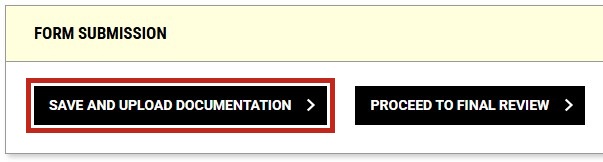
- At the bottom of the page, click on the "Save and Upload Documentation" button.
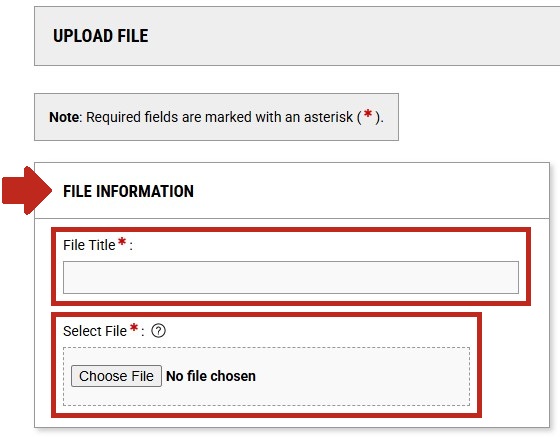
- This will take you to the "Upload File" page.
- Under the section titled "File Information" enter the name of the file in the text box below "File Title" and click on the "Choose File" button to select the file from your device.
- Once you have selected and opened the appropriate file, click on the "Upload File" button at the bottom of the page.

- You will be taken back to the top of the page where a "Files Successfully Uploaded" section will appear where the file(s) that you have uploaded will be listed.

- After uploading the file, click the "Proceed to Final Review" button.

- At the bottom of the page, click on the "Save and Upload Documentation" button.
- This will take you to the "Review Before Submitting" page.
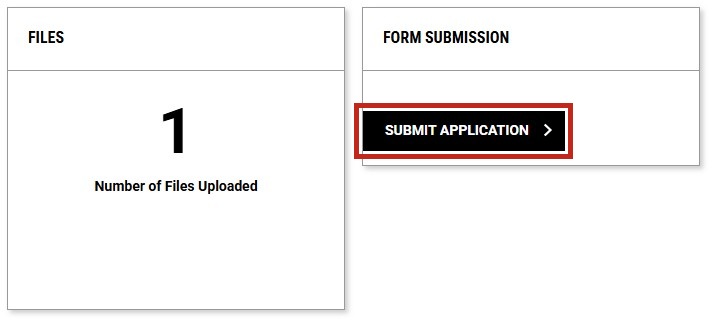
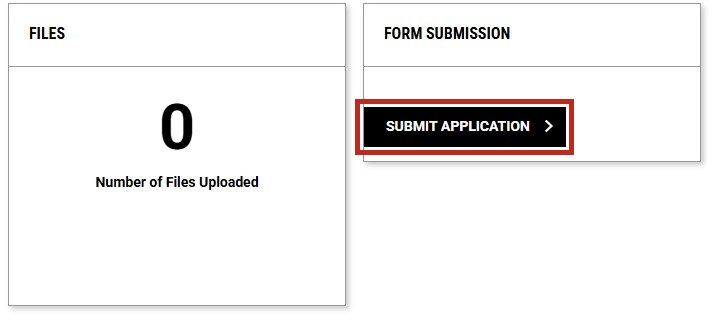
- This page shows you how many files you have uploaded with the "Submit Application" button next to the "Files" subsection.
- Once you have completed the application, click the "Submit Application" button.
Don't have documentation? Follow these steps:
- If you do not have a digital copy of your disability verification, you can submit the application without it.
- At the bottom of the page, click on the "Proceed to Final Review" button.
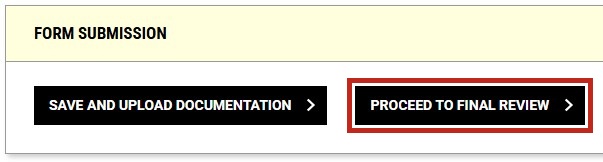
- At the bottom of the page, click on the "Proceed to Final Review" button.
- This will take you to the "Review Before Submitting" page.
- This page shows you how many files you have uploaded with the "Submit Application" button next to the "Files" subsection.
- After reviewing your application, click the "Submit Application" button.
Contact Us
