

Technology Access
Butte IT provides technical support for students, faculty, and staff. We look forward to working with the campus community to create technology solutions in supporting our "Students First" initiative.
Campus Wi-FI
Which Network Should I Use?
Campus is Butte College's secure Wi-Fi network for students, faculty, and staff. If you regularly use Wi-Fi on campus, this is the network you should choose. It provides a secure, encrypted connection, and most devices will automatically reconnect after the initial setup. To connect, simply sign in with your Butte College email address and password.
Remember, if you're ever unsure about connecting to Campus Wi-Fi, the IT team is here to help.
Butte_Guest is an unsecured connection for guests who have a legitimate need for wireless connectivity while on campus. The Butte_Guest network should be used only for short-term use. No login required, but you must accept the terms of use before gaining access.
Need help connecting to Campus Wi-Fi? Select your device below.Use the following to connect to CAMPUS Wi-Fi:
- Click on the wireless configuration icon at the bottom right of your screen.
- Look for and select the network named "CAMPUS".
- When prompted, enter your Butte College email address and password.
Use the following to connect to CAMPUS Wi-Fi:
- Click on the wireless configuration icon at the bottom right of your screen.
- Look for and select the network named "CAMPUS".
- When prompted, enter your Butte College email address and password.
Use the following selections to connect to CAMPUS Wi-Fi:
- EAP Method: PEAP.
- Phase 2 Authentication: MSCHAPV2.
- CA Certificate: Trust on First User -or- Do not validate.
- Identify: Butte College email.
- Password: current Butte College password.
Use the following selection to connect to CAMPUS Wi-Fi:
- Connect to CAMPUS network.
- Username: Butte College email.
- Password: Butte College password.
Use the following selections to connect to CAMPUS Wi-Fi:
- SSID: Campus
- Security: EAP
- EAP method: PEAP.
- EAP Phase 2 authentication: MSCHAPV2.
- Server CA certificate: Do not check.
- Subject match: leave blank
- Subject alternative name match: leave blank
- Domain suffix match: Campus or radius.butte.edu (if one doesn't work, try the other)
- Identify: Butte College email.
- Password: current Butte College password.
- Anonymous identity: leave blank
Student Portal Login Help
The MyBC Portal is used to log in to Self Service, Canvas, Butte email, and more.
If you are a returning student and need help accessing your Butte College account, please follow these steps:
- Complete a Returning Student Application.
- Visit the Butte College Homepage and select Apply to submit a Returning Student Application.
- Check your personal email for you account information.
- Once your application has been processed, you will receive an email containing your Butte College username and temporary password.
- Try resetting your password.
- If you have previously enrolled in Multi-Factor Authentication (MFA), you may be able to reset your password yourself:
- Select Forgot Password on the login page.
- On the next screen, select Reset Forgotten Password.
- Select 2nd Factor / One Time Passcode.
- Follow the prompts to verify your identity and create a new password.
- If you have previously enrolled in Multi-Factor Authentication (MFA), you may be able to reset your password yourself:
- Contact the IT Help Desk if you are unable to reset your password.
- If you have not enrolled in MFA, are unable to complete the verification process, or continue to experience issues, contact the IT Help Desk for assistance.
When logging in to PortalGuard, utilize your full Butte College email address as the username, including the @student.butte.edu extension.
If uncertain about your Butte College email address, please reach out to User Support Services for assistance in obtaining the necessary credentials. Have your Student ID number ready. If you do not know your ID number, please reach out to Admissions before contact IT.
This section explains how to recover your Butte College password.
The following are instructions for the most common method for resetting your password.
- Click the Forgot Password option
- If you're prompted to enter your username, do so at this time. Remember that your username is your full Butte College email, including @student.butte.edu.
- You'll see two options: Unlock Account and Reset Forgotten Password. Select the Reset Forgotten Password option.
- Next, you will select your authentication method. Two-factor/One-Time Passcode is the preferred method since it is required to log into your account.
- A code will be sent to the primary recovery method on your account. This could be either a phone text or a code sent to a personal email on file.
- If this doesn't work, try selecting the Problems with Authentication option to see if other recovery methods are available.
Sometimes recovery is not possible; in that case, you will need to contact Student Tech Support at 530-895-2925 for assistance.
All account recovery and security settings can be managed through Account Management, including:
- Recovery phone number (also used for Multi-Factor Authentication (MFA) verification)
- Recovery email address for MFA
- Mobile Authenticator app for MFA
- Security questions
- Password updates and changes
Keeping this information up to date helps ensure you can recover access to your account if you forget your password, get a new phone, or encounter sign-in issues.
Canvas Support
Access Canvas directly at canvas.butte.edu or from the "MyBC Portal" link on this site.
- Courses in Canvas do not appear until 7 a.m. of the first scheduled day of a course. Check the course schedule to review a course's start date.
- Students must be officially enrolled in a course for it to display within Canvas. Waitlisted or dropped courses will not be displayed.
- Instructors must "publish" a course in Canvas for it to be viewable to students. If a course is not displaying in Canvas for an enrolled student, please contact the instructor.
Please view the following Canvas Guides as needed.
- What are the browser and computer requirements for Canvas?
- How do I clear my browser cache and cookies?
- What are the Canvas accessibility standards?
- What tools and computer skills do I need to use Canvas?
- How do I enable third-party cookies in my browser?
- How do I contact 24/7 Canvas Support?
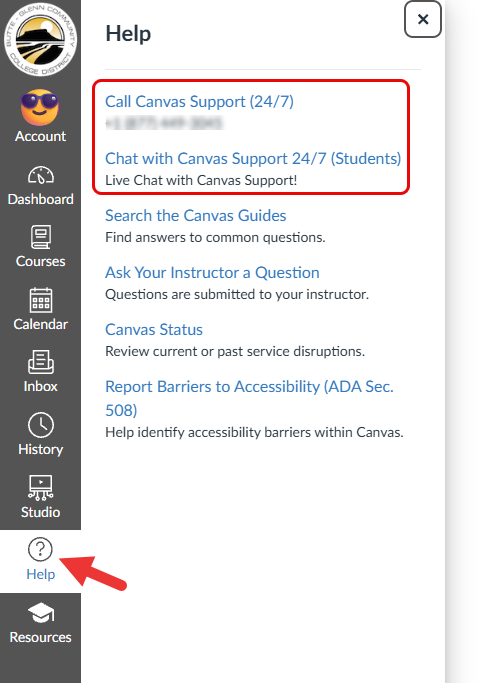
 Students are also encouraged to explore the Canvas Student Guides as needed.
Your Canvas username and password are the same as your Butte College portal login.
 Passport to Canvas is a free, self-paced online workshop that shows you everything you need to know about using Canvas for common instructional purposes.
Students are also encouraged to explore the Canvas Student Guides as needed.
Student Software
Butte College students have free access to the full suite of Microsoft Office applications for use on personally owned devices.
This subscription-based software includes the latest versions of Word, Excel, PowerPoint, and other Microsoft Office applications. As long as you are an active Butte College student and the Microsoft program remains available, you'll have access to these applications and receive updates automatically.
The Adobe Suite is only available to students in labs.
Personal device access and installs are not supported at this time.
You can purchase Creative Cloud on your own. CollegeBuys offers student discounted prices.
Zoom Web Access
Access zoom from Butte's direct link:
https://butte-edu.zoom.us
Desktop Application
How to login using the Desktop Zoom app:
- Open Zoom, do not enter your email and password, instead click on the SSO button.
- Enter butte-edu in the domain field. (Please note the hyphen)
- Enter your credentials in PortalGuard
- Click Open zoom.us button.
Internet Security
Online safety starts with awareness. Explore simple steps you can take to keep your information and college accounts secure. Remember, if you're ever unsure about a suspicious email, website, or security concern, your IT team is here to answer questions and help keep you safe online.
If you believe your account has been compromised, receive a suspicious email, or notice unusual activity, contact the Information Technology Department immediately.
Examples of suspicious activity:
- Unexpected password reset notifications.
- MFA prompts you did not initiate.
- Messages requesting credentials or financial information.
- Unrecognized logins or account changes.
Strong passwords are one of the most effective ways to protect your accounts. Do not share your password with anyone, including friends, classmates, coworkers, or family members.
Password Tips:
- Use a unique password for each account.
- Create passwords that are long and difficult to guess.
- Avoid using personal information such as birthdays, names, student IDs, or phone numbers.
- Avoid common passwords, simple patterns, and easily guessed words or phrases (such as "password123" or "qwerty").
- Create a passphrase using several unrelated words that are easy for you to remember but difficult for others to guess.
Need help creating a password? The Proton Password Generator can help you create a strong, secure password or passphrase.
Enable Multi-Factor Authentication (MFA)
Multi-Factor Authentication (MFA), also known as 2nd-Factor Authentication (2FA), is a security feature that requires more than just your password to sign in to an account. After entering your password, you'll be asked to verify your identity using a second method, such as:
- Approving a notification on your phone
- Entering a code sent to your mobile device
- Using an authentication app
- Confirming a sign-in request through a trusted device
This extra step helps protect your account, even if someone learns your password.
Important Security Tip
Only approve MFA requests that you initiated. If you receive an MFA notification when you are not trying to sign in, deny the request and contact the IT Help Desk. Unexpected MFA prompts may indicate that someone is attempting to access your account.
Why MFA Matters
Passwords can be stolen through phishing emails, data breaches, or other scams. MFA adds an additional layer of protection, making it much harder for unauthorized individuals to gain access to your account.
When connecting to wireless networks, use trusted and secure Wi-Fi whenever possible. Public or unsecured networks may expose your online activity to others and increase the risk of unauthorized access to your information.
Examples of sensitive information include:
- Username and passwords
- Student or employee records
- Financial or banking information
- Social Security numbers
- Personal contact information
- Academic records and grades
Best Practices:
- Connect to official CAMPUS Wi-Fi networks when on campus.
- Verify the network name before connecting.
- Avoid entering sensitive information while connected to unknown or unsecured networks.
- Log out of websites and applications when you are finished using them.
Install updates for your operating system, web browser, and applications as soon as they become available. Updates often include important security fixes that protect against newly discovered vulnerabilities. Keeping your devices and software up to date can also improve performance and compatibility with online services, including Canvas, which works best when supported browsers and operating systems are running the latest updates.
Be cautious when opening links or attachments in emails, text messages, or social media messages. Cybercriminals often use fake messages that appear to come from trusted organizations to steal personal information or install malware.
Warning Signs:
- Urgent requests for immediate action
- Requests for passwords or personal information
- Unexpected attachments
- Misspellings, poor grammar, or unusual sender addresses
URL shortening services such as TinyURL and Bitly create shortened web addresses that hide the actual destination website.
Because the destination is not immediately visible, attackers sometimes use shortened URLs to direct users to phishing sites or malicious downloads.
A website such as https://www.butte.edu/information-technology/security-awareness/password-reset might be shortened to https://tinyurl.com/abc123xyz. While the shortened link is easier to share, it hides the destination website, making it more difficult to verify where the link will take you before clicking.
Best Practice:
- Only click shortened links from trusted sources.
- If you are unsure where a shortened link leads, verify it before clicking.
Legitimate organizations will not ask you to provide passwords through email, text messages, or phone calls.
If you receive a request for sensitive information, verify the request by contacting the organization directly using official contact information.
Open Computer Labs
- Main Campus Library
- Glenn Center 103 and 104
Hours and Location
Fall and Spring Hours
Monday - Thursday
7:30 AM - 5:00 PM
Friday
8:00 AM - Noon
Summer Hours
Monday - Thursday
7:00 AM - 5:00 PM
Student Contact:
(530) 895-2925
studenttechsupport@butte.edu
Staff/Faculty Contact:
(530) 895-2888
UserSupportServices@butte.edu
ITS - Room 103
3536 Butte Campus Drive,
Oroville, CA 95965